
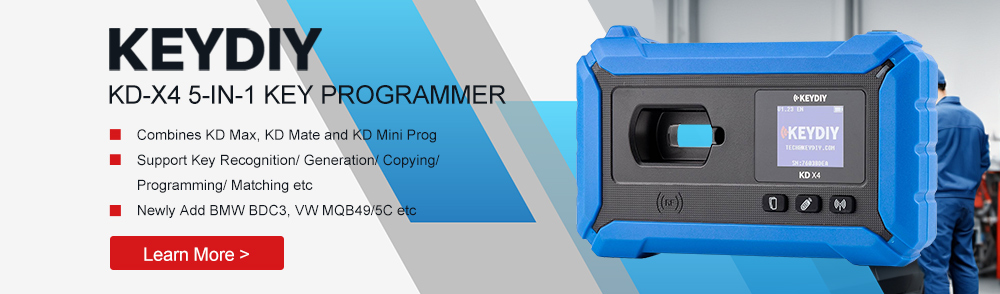
This guide explains how to program Volkswagen and Audi 5D transponder keys using the KEYDIY KD-X4 5-in-1 key programmer. The process involves reading the original key, generating dealer data, and writing it to a new key before completing on-vehicle learning.
Required Tools & Equipment
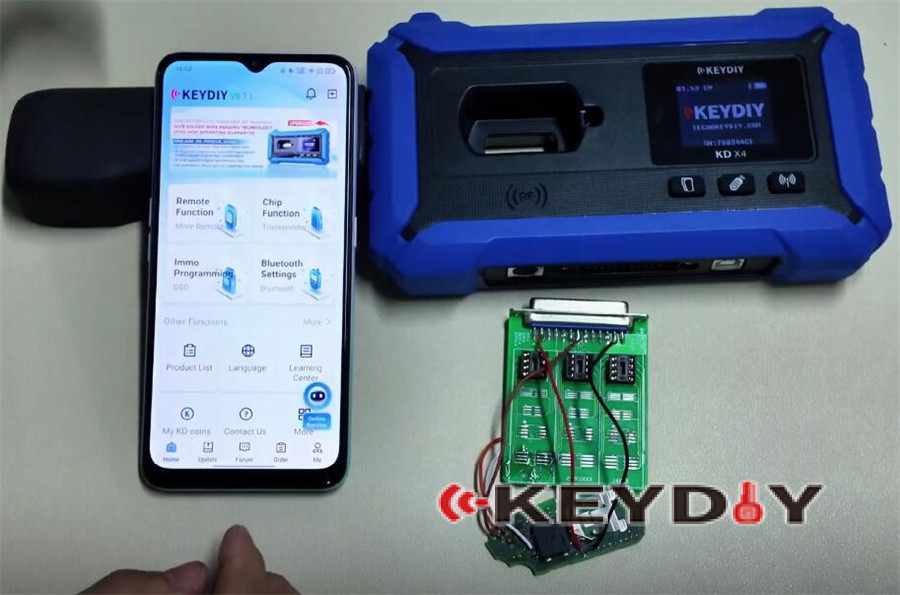
Before starting, prepare the following:
- Target 5D transponder key
- Original vehicle key (mandatory for 5D programming)
- KEYDIY KD-X4 5-in-1 key programmer
- KEYDIY KD-X4 8-pin adapter board
- Soldering tools and connecting wires
Software & Firmware Requirements
Make sure your device is up to date:
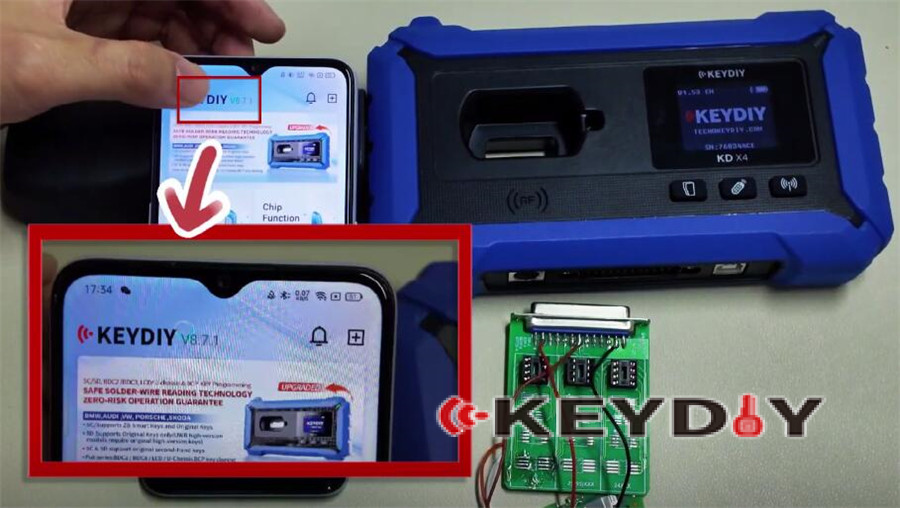
KEYDIY APP version: 8.7.1 or higher
KD-X4 firmware version: 1.53 or higher
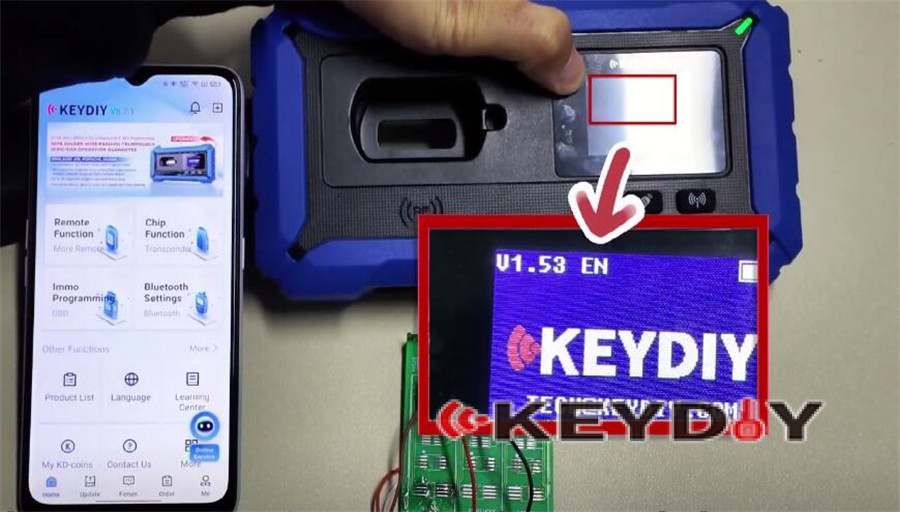
Updating ensures compatibility and stable operation during 5D key programming.
Step-by-Step Programming Procedure
Step 1: Initial Setup & Device Connection
Launch the KEYDIY App.
Power on the KD-X4 programmer.
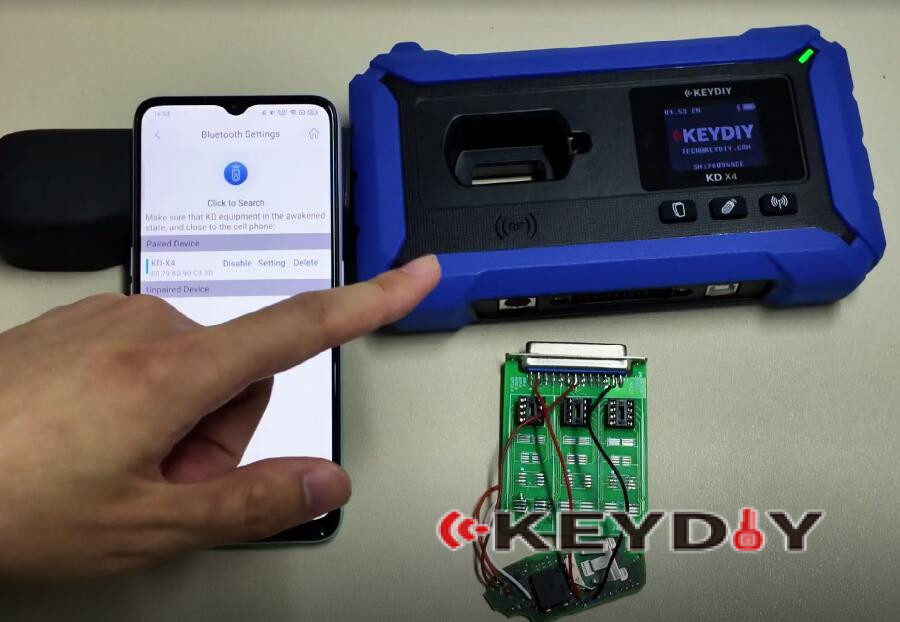
Connect the device to your smartphone via Bluetooth:
Bluetooth Settings → KD Remote Control Devices
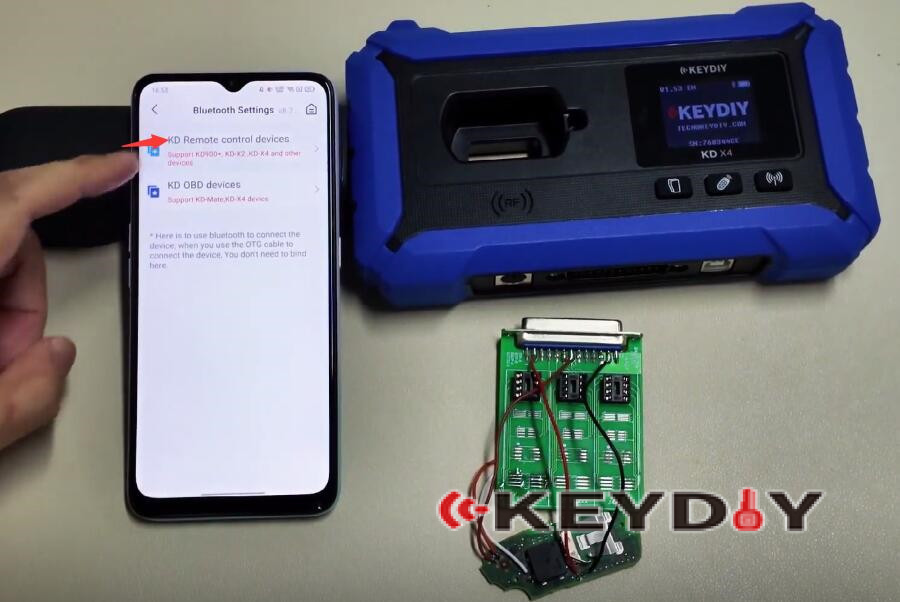
Confirm the connection status under Paired Devices.
Step 2: Select the Programming Path
From the main menu, select Immo Programming.
Navigate through the following path:
IMMO Programming → Volkswagen → Select by Type → 5C/5D Immobilizer System
Tap Start Execution to proceed.

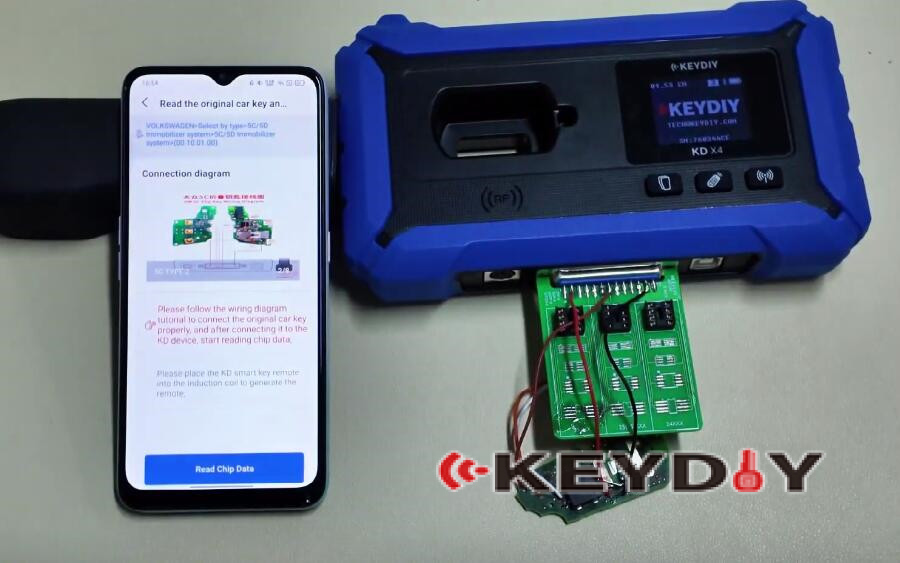
Step 3: Read Original Key & Generate Service Code
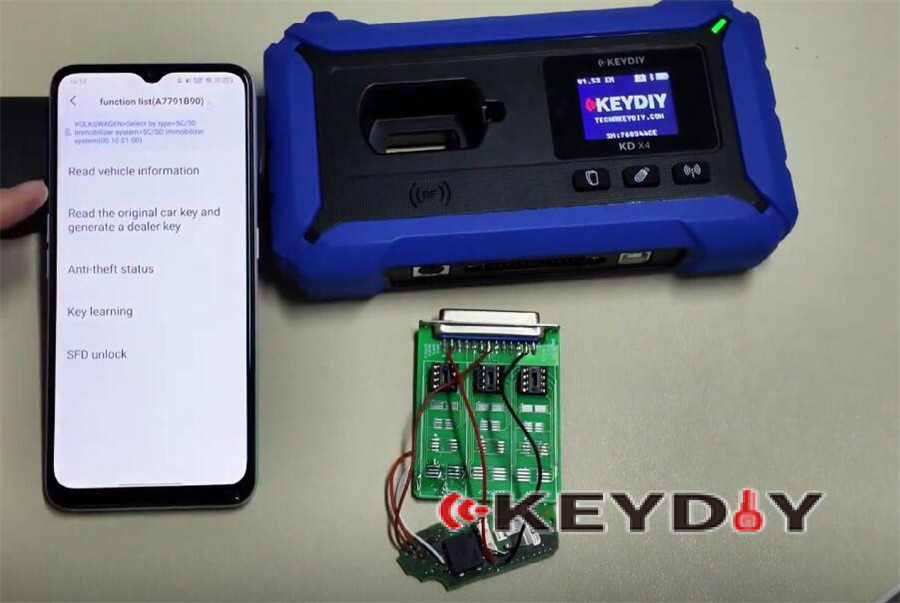
Choose “Read the original car key and generate a dealer key.”
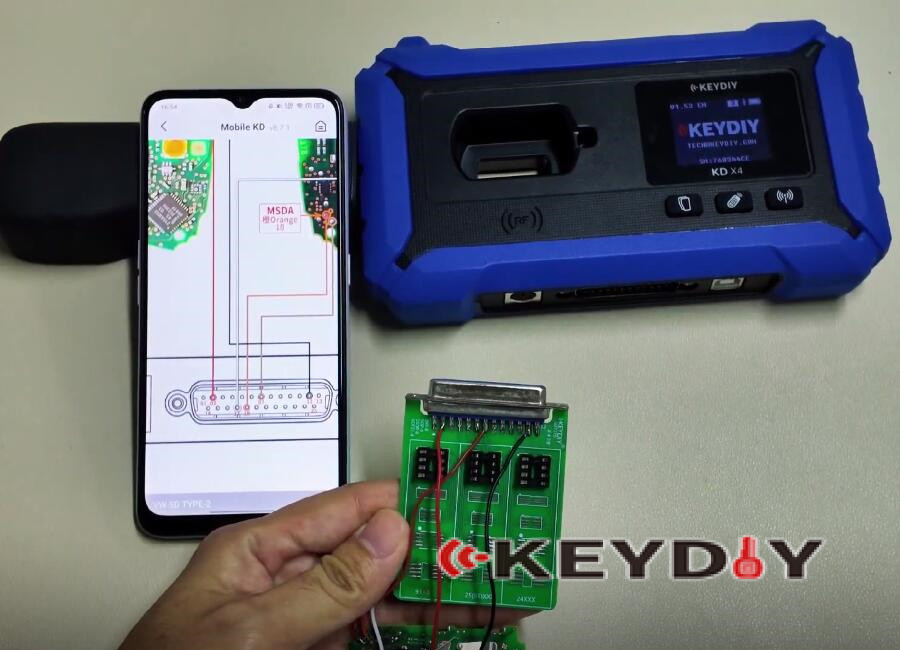
A wiring diagram will appear on the screen—this diagram is essential for the next steps.
Step 4: Wiring Instructions (Critical Step)
⚠️ Accuracy is crucial during wiring.
Adapter Board:
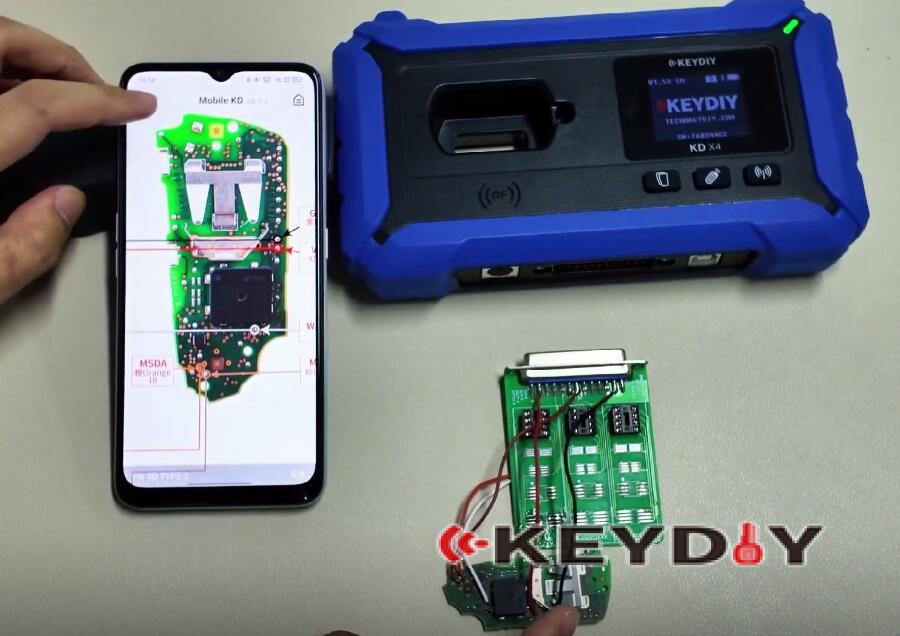
Identify the three pins on the top row (front side) of the KD-X4 adapter board and connect wires accordingly.
Additional Wiring:
Connect wires to the two extra points shown in the on-screen diagram.
Key Connection:
Solder the wires from the adapter board to the corresponding marked points on the target key.
Final Check:
Double-check all connections before proceeding.

Step 5: Read Chip Data
Insert the original vehicle key into the adapter board.
Click Read Chip Data in the app.
Once successful:
- Key data is uploaded to the cloud
- A Service Code is generated
Record the Service Code for later use.

Step 6: Write Data to the New Key (Dealer Key Generation)
Disconnect the original key.
Properly wire and insert the new key into the adapter.
In the software, select “Original Key (Non-Vehicle)”.
Start the writing process.

A “Writing Successful” message confirms completion.

Step 7: On-Vehicle Key Learning (Final Step)
Remove all wires and reassemble the new key.
Take both the original key and the newly programmed key to the vehicle.
Perform key learning using:
KD-X4 key programmer‘s key learning function, or
KEYDIY KD-Mate key programmer
Follow on-screen instructions to complete vehicle matching.
⚠️ Important:
For vehicles manufactured around 2024 or later, SFD (Secured Feature Deactivation) unlocking may be required before key learning can proceed.
Verification
After successful learning, test the new key.
✔ The vehicle should start normally with the newly programmed key.
Important Notes & Support Information
- For this 5D programming process, only 5C chip type is supported when using the KD ZB Smart Key option.
- Always follow the 5D-specific procedure described above for reliable results.
Video guide:
Read also:
